Accessing Tandem from Canvas
Add Tandem to your Canvas Course
- Choose “Settings” from the course navigation menu.
- Choose the Navigation tab
- Find Tandem in the list of tools you haven’t enabled yet.
- Drag and drop the Tandem to the desired position in the list of active tools
- Click Save at the bottom of the page to put Tandem on the course menu
Setting up Tandem
- Click “Tandem” in your course navigation menu
- Tandem will send you a verification code the first time you do Tandem setup.
- Enter the code to verify your email.
Now you’re ready to set up your Tandem Term.
You will see a list of courses associated with your login.
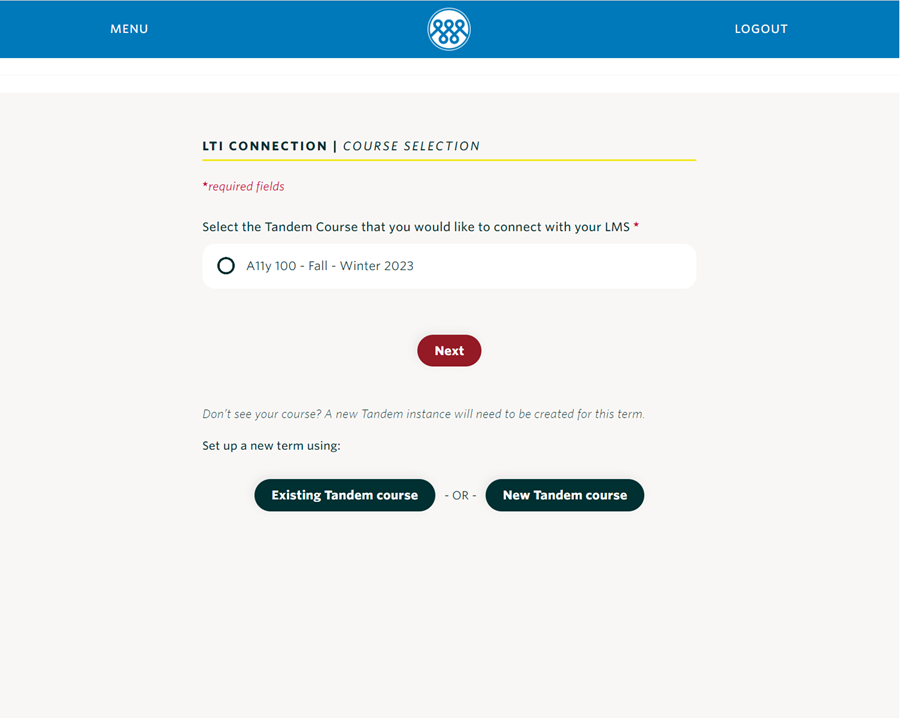
If the course you want to connect to Tandem is listed follow the instructions for connecting a Setup Tandem Course.
If the course you want to connect to Tandem is NOT listed follow the instructions for Setting up a New Tandem Course.